How to use the new prescription fields and exercise diary
The Rehab Lab now gives you more control over the instructions you prescribe with each exercise. Instead of entering Sets & Reps together, you can enter Sets, Reps and Frequency separately. You can rename these labels and add up to three further prescription fields for details such as load, resistance, hold time, tempo, effort or rest.
These fields are also built into the new exercise diary, allowing your client to see the prescribed values and record their results against the information that matters for each exercise.
What has changed?
Previously, each exercise had two prescription fields: one SETS & REPS field and one FREQUENCY field. Their labels were fixed, so you could edit the values but not the wording of the labels.
There are now six flexible prescription fields, and both the label and value of every field can be edited:
• Sets
• Reps
• Frequency
• Three custom fields
Each field contains a label on the left and a value on the right. The label explains what is being prescribed and the value contains the instruction for your client. For example, a label of “Load” could have a value of “15 kg”.
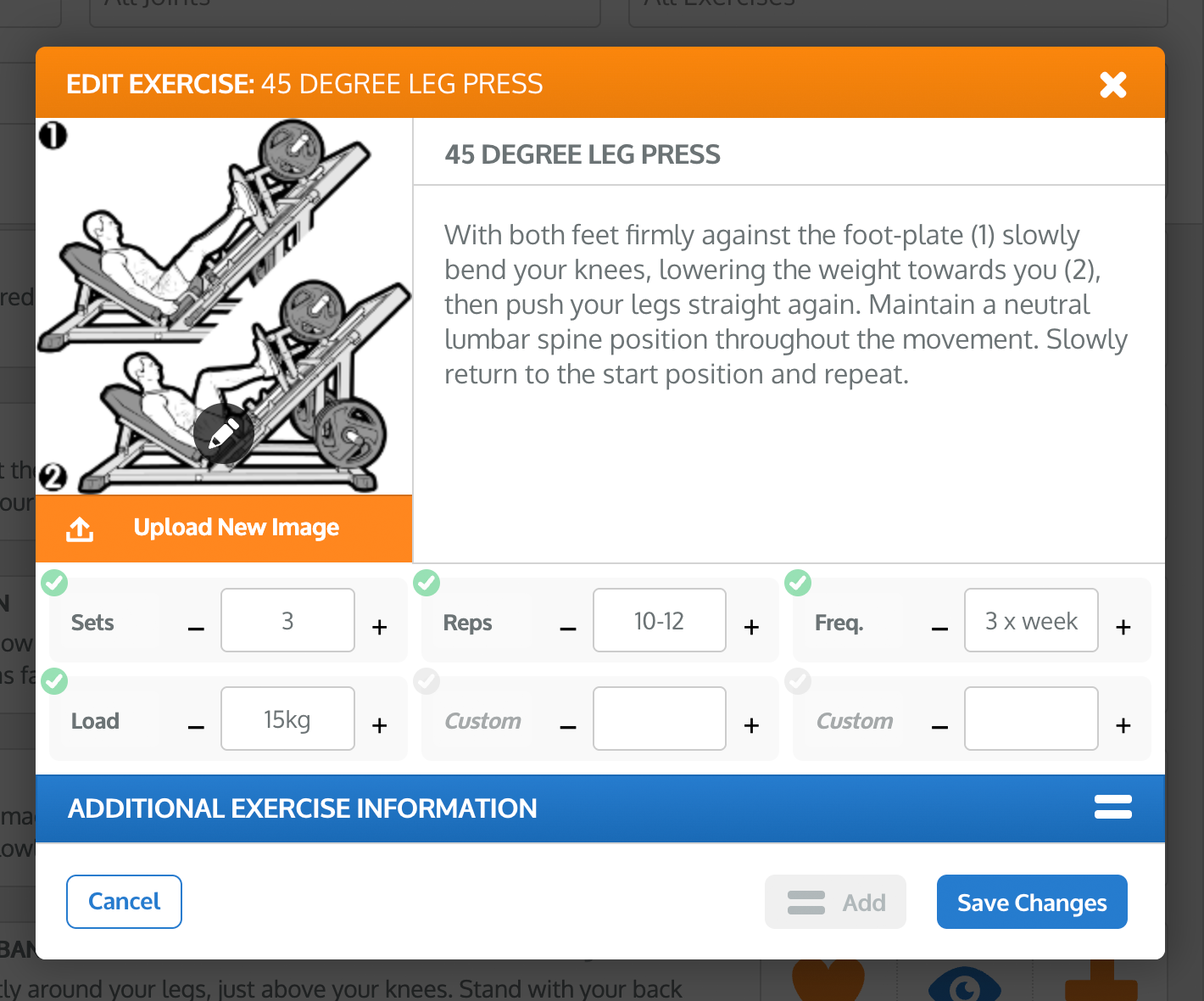
The Edit Exercise window with six customisable prescription fields.
1. Open the exercise editor
Add an exercise to the PROGRAMME CONTENTS column, then click its blue EDIT ITEM button (the pencil icon). The EDIT EXERCISE window will open.
The prescription fields are displayed beneath the exercise description. Changes made here apply to this copy of the exercise in your current programme.
2. Enter Sets, Reps and Frequency separately
The first three fields have the default labels Sets, Reps and Freq. Enter each instruction in its own value box. You can type numbers, ranges or short written instructions, depending on what is most useful for your client.
For example:
• Sets: 3
• Reps: 12
• Freq.: 3 x week
Use the plus and minus buttons when you want to increase or decrease a simple numeric value, or click in a value box to type the instruction directly.

The 6 customisable prescription fields.
3. Edit the default labels
The labels Sets, Reps and Freq. are defaults, not fixed headings. Click directly in a label and type the wording you want to use.
For example, you could change:
• Sets to Rounds
• Reps to Duration
• Freq. to Sessions
If you leave one of these label boxes empty, The Rehab Lab uses its default label. This means you only need to enter text when you want a different label.

Default labels are customisable.
4. Add other prescription details
Use the three custom fields for any additional information that will make the prescription clearer. Enter both a label and its corresponding value.
Common examples include:
• Load: 15 kg
• Resistance: Red band
• Hold: 30 seconds
• Tempo: 3–1–3
• RPE: 7/10
• Rest: 60 seconds
• Pain limit: No more than 3/10
You do not need to use all three custom fields. Only add information that helps your client understand or complete the exercise.
5. Understand when a field is included
The status button beside each prescription field shows how that field will be used:
• A label and value: the field is included automatically in the exercise prescription and the exercise diary.
• A custom label with no value: click the status button to include the field as a blank diary row for your client to complete.
• A custom value with no label: the field is not included; add a label so your client knows what the value means.
• No label and no value: the unused custom field is omitted.
A label-only field is useful when you want the client to record something that you do not prescribe in advance—for example Pain, RPE achieved, Load used or Distance completed.
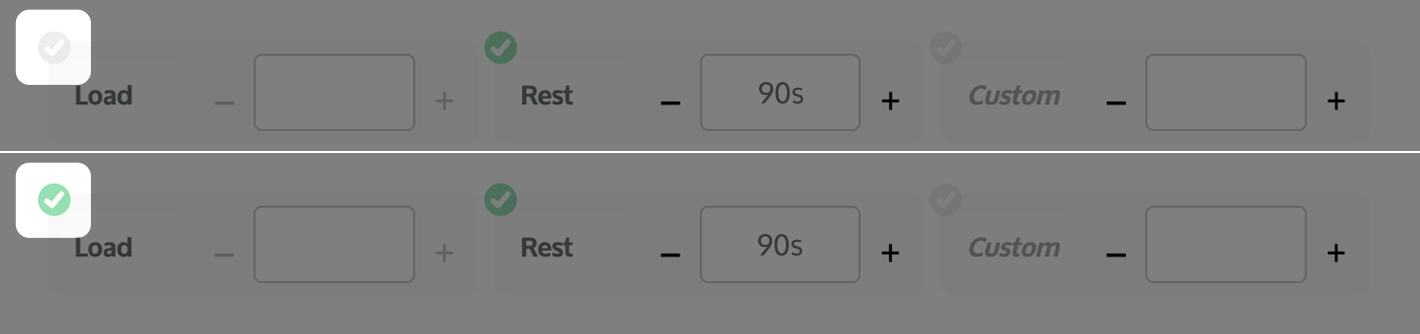
The Load field has a label but no prescribed value. The grey tick (top) indicates that it is not included in the exercise diary. Click the tick to turn it green (bottom) and include Load as a blank diary field for the client to complete.
6. Save and review the exercise
Click SAVE CHANGES when you have finished. The updated prescription fields will be shown with the exercise in your programme and carried through to the completed PDF.
Using the Programme Editor
If several exercises need the same labels or values, use the Programme Editor instead of opening each exercise separately. It lets you apply selected prescription fields to multiple exercises, copy labels only, copy values only, or copy both labels and values.
This is particularly helpful when you want to standardise wording across a programme or prescribe the same Sets, Reps, Frequency, Rest or other detail to a group of exercises.
Click here to learn how to use the Programme Editor.
How the new exercise diary works
The exercise diary now uses the prescription fields saved with each exercise. Each diary exercise displays its title and image, followed by the relevant labels and prescribed values. Blank boxes across the page allow your client to record each completed session.
The diary provides space for up to 12 entries and displays up to six prescription rows for each exercise. Unused fields are left out, so the diary stays focused on the information that is relevant to that exercise.
For example, an exercise diary could show:
• Sets: 3
• Reps: 10
• Freq.: Alternate days
• Load: 15 kg
• RPE: blank for the client to record
• Pain: blank for the client to record
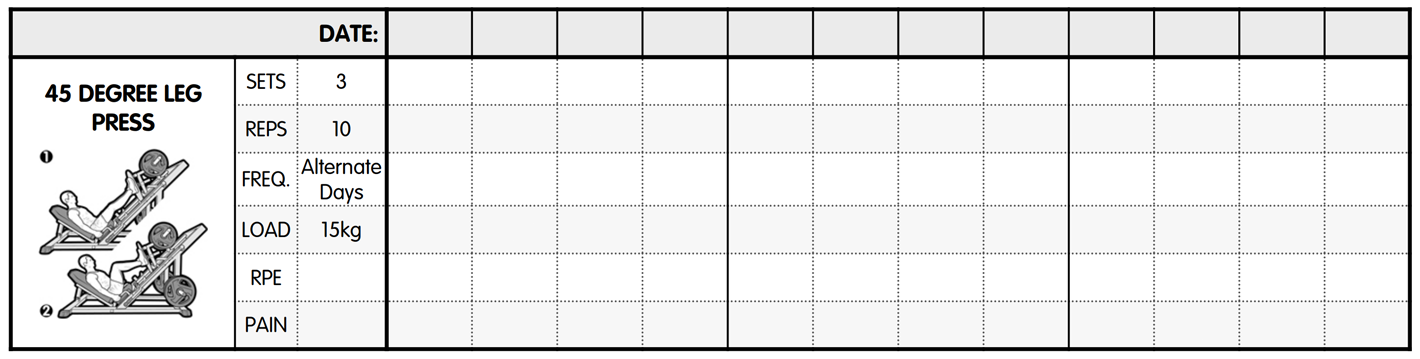
The exercise diary displays the prescribed Sets, Reps, Frequency and Load alongside blank RPE and Pain fields for the client to complete after each session. The dated columns allow progress to be recorded over time.
Add the exercise diary to a programme
When you are ready to create or e-mail the programme, open the programme options and select the EXERCISE DIARY checkbox. The diary will be added after the exercise pages in the completed programme.
Because the diary uses the fields saved with each exercise, it is worth reviewing those fields before creating the final document. Add label-only custom fields wherever you want the client to record an outcome rather than follow a value prescribed in advance.
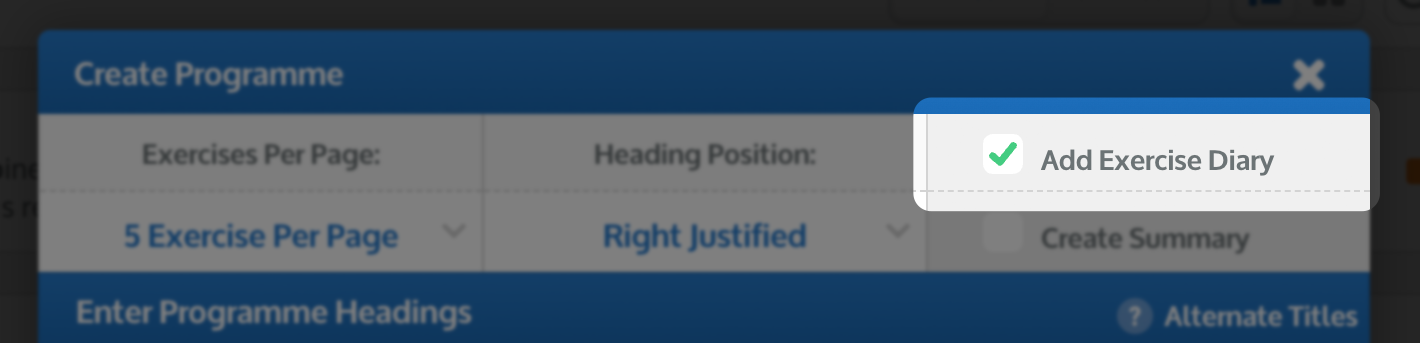
The Create Programme window with the Exercise Diary checkbox selected.
Tips for getting the most from prescription fields
• Use short, familiar labels that your client will understand.
• Keep units with the value—for example “15 kg”, “30 seconds” or “500 m”.
• Use custom fields only when they add useful information.
• Use a label without a value when the client should record the result themselves.
• Keep the same labels across similar exercises to make the programme easier to scan.
• Use the Programme Editor to update shared fields quickly.
• Always review the final PDF and diary before sending them to your client.